
Introduction
Face ID has revolutionized iPhone security by offering users quick and secure authentication through facial recognition. The ability to add a second Face ID can further enhance convenience, allowing multiple trusted users easy access, or accommodating significant appearance changes like new eyewear. This guide will walk you through the process and explore how this feature can benefit your daily device interactions.
Understanding Face ID Technology
Face ID employs cutting-edge infrared sensors and powerful algorithms to map and recognize faces with high accuracy. Enhancing security by replacing Touch ID, it uses a facial mapping technique involving over 30,000 dots to create a comprehensive model of your face. Importantly, this technology adapts to changes such as facial hair or makeup. Apple extends this functionality with the option to add another face, reinforcing its versatility for household and work-related scenarios. Understanding this technology’s detailed workings is key to optimizing its potential.
Why Add a Second Face ID? Benefits and Use Cases
Having a second Face ID profile on your iPhone provides a range of advantages, chiefly around increased accessibility. For example, families can share a device without handling multiple passcodes. This feature also supports scenarios requiring different appearances, such as alternating between glasses and contact lenses. This adaptable security measure enables a fluid transition between user profiles, ideal for shared environments or individuals with dynamic appearance profiles. By maximizing these benefits, users can achieve personalized security experiences.
Step-by-Step Guide to Adding a Second Face ID
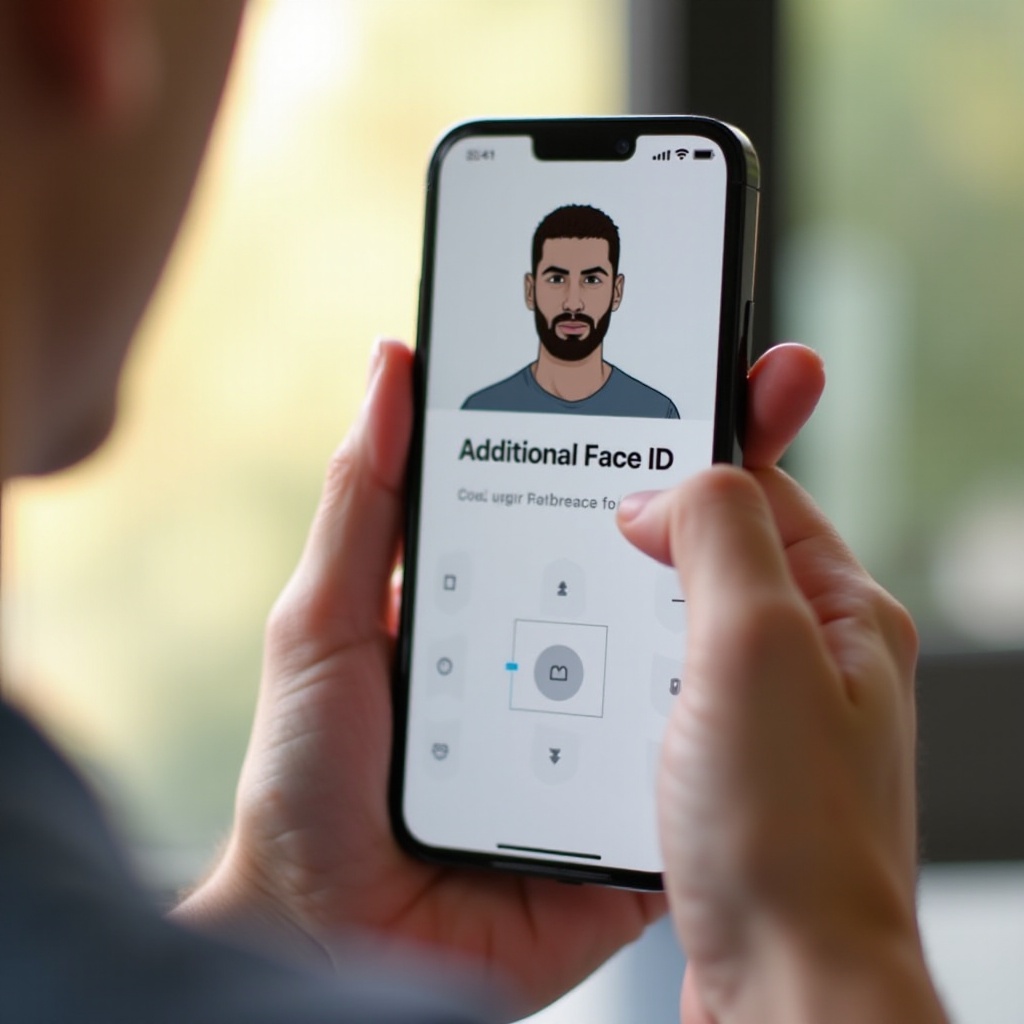
Adding a second Face ID is straightforward if you follow these steps:
- Ensure your iPhone is running the latest iOS version and that the primary Face ID is configured.
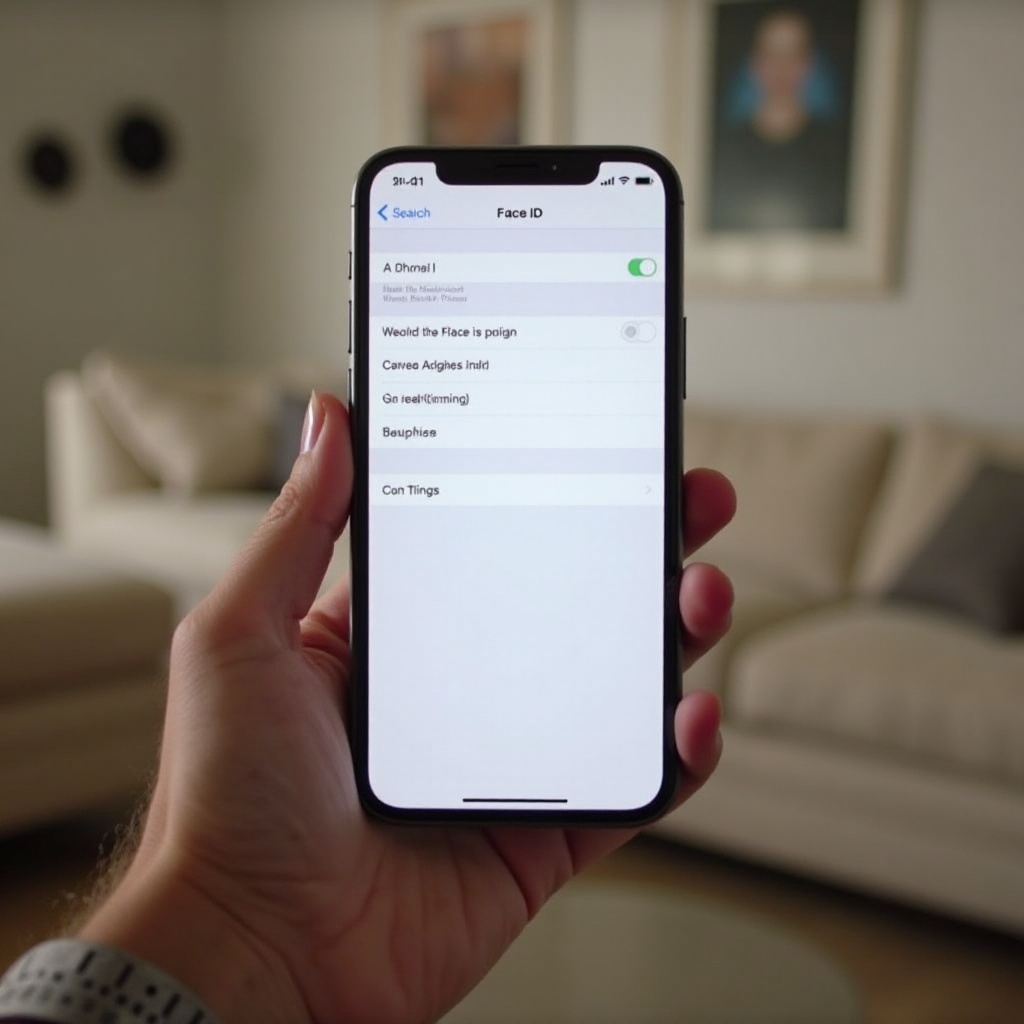
- Go to the ‘Settings’ on your device and select ‘Face ID & Passcode.
- Enter your passcode to proceed.
- In the settings, find ‘Set Up an Alternate Appearance.’ Tap this option.
- During setup, follow prompts while positioning your face within the onscreen frame for mapping.
- Confirm setup completion by testing both Face IDs on compatible apps and features.
This setup process will allow seamless transitions between recognized profiles, thereby enhancing both functionality and security.
Troubleshooting: Common Issues and Solutions
Despite the ease of setup, users may encounter challenges with accuracy in different lighting or extreme changes in appearance. Here’s how to troubleshoot:
- Illuminate your surroundings adequately during the setup, but avoid strong direct light that may impact sensors.
- If recognition becomes problematic, recalibrate by removing the alternate appearance and setting it up anew.
- Regular iOS updates can resolve minor bugs, optimizing Face ID functionality.
Addressing these issues allows a smooth operation, maximizing iPhone’s accessibility through Face ID enhancements.
Conclusion
Adding a second Face ID enhances your iPhone’s utility, improving access and security for multiple users or varied appearances. This article outlines easy setup steps, highlights the benefits, and tackles possible troubleshooting issues. Implementing these features promises an enriched and flexible user experience.
Frequently Asked Questions
Can I add more than two faces to Face ID?
Apple currently limits Face ID to two profiles: one primary and one alternate appearance.
Will adding a second Face ID affect my device’s security?
Adding another Face ID does not compromise security; both profiles are stored securely, maintaining high standards.
Can I remove a second Face ID if needed?
Yes, you can remove the second Face ID by navigating to Face ID settings and selecting the option to reset or delete alternate appearances.