
Bose headphones are renowned for their unparalleled sound quality and advanced technology. Ensuring a proper connection to your device is essential for an optimal listening experience. Whether you’re connecting for the first time or transitioning between devices, this comprehensive guide has you covered.
Introduction
For audiophiles and casual listeners alike, connecting Bose headphones to your device is crucial for maximizing performance. This step-by-step guide will equip you with the knowledge needed to connect your headphones seamlessly, enhancing your audio experience and troubleshooting any issues along the way.
Understanding Your Bose Headphone Model
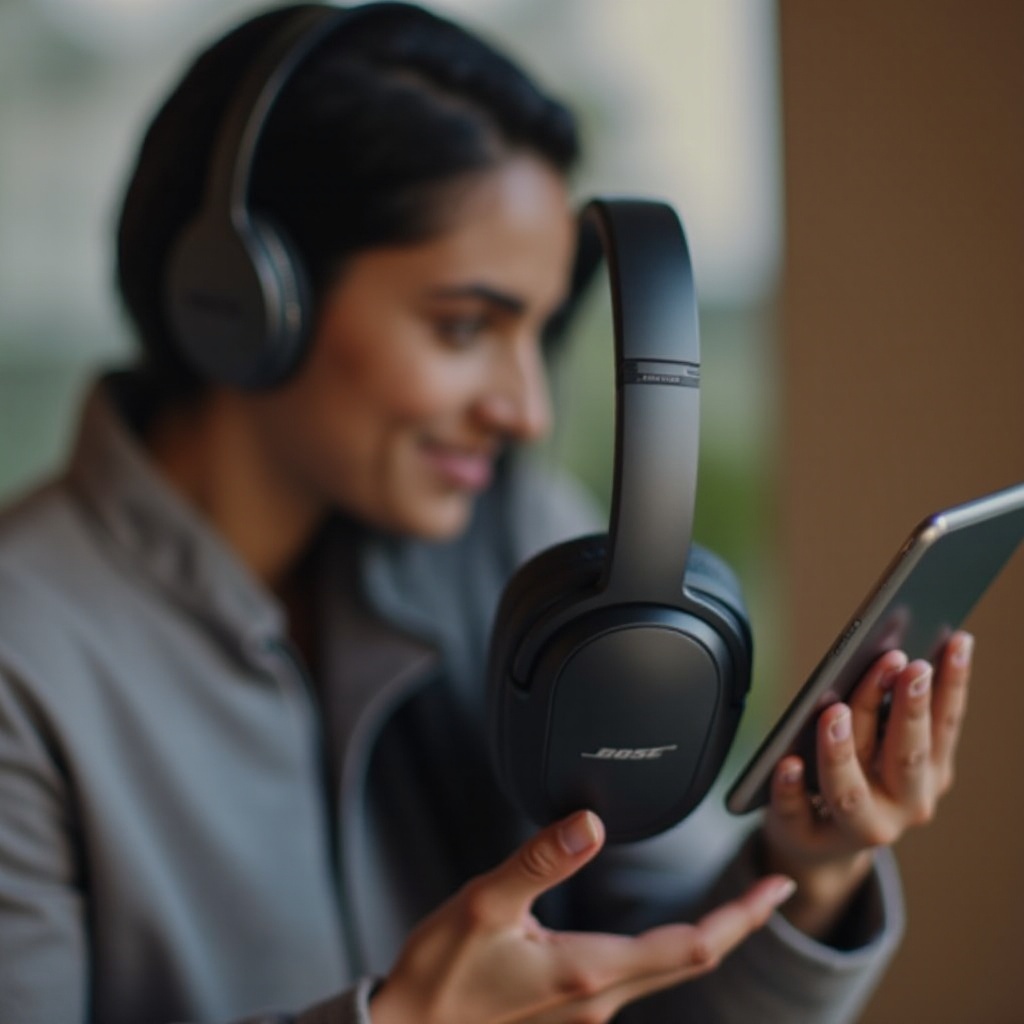
Before attempting to connect your headphones, it is vital to identify the specific model you own. Different models come with distinct features that can impact the connection process. Noise-canceling capabilities or integrated virtual assistants may necessitate varying setup steps. Review the user manual or visit Bose’s website for model-specific instructions.
Preparing for Connection
Preparation is key to a successful headphone connection. Begin with these steps to ensure a smooth process:
- Charging Your Headphones: A fully charged battery prevents unexpected shutdowns during connection. Use the supplied cable to charge your headphones until fully powered.
- Updating Firmware: Keep your headphones updated with the latest firmware to enhance compatibility and functionality. Check for updates through the Bose Connect app or Bose’s official site.
With your headphones charged and updated, proceed to establish a connection with your device.
Connecting Bose Headphones via Bluetooth
Bluetooth connectivity is a popular method for pairing Bose headphones. Follow these steps for different devices:
- Enabling Pairing Mode: Power on your Bose headphones. Press and hold the power button until the Bluetooth light flashes, signaling readiness to pair.
- Step-by-Step Guide for Android Devices:
- Open ‘Settings’ on your Android device.
- Navigate to ‘Bluetooth’ and switch it on.
- Select your Bose headphones from the list of available devices to connect.
- Step-by-Step Guide for iOS Devices:
- Access ‘Settings’ on your iOS device.
- Tap on ‘Bluetooth’ to enable it.
- Choose your Bose headphones from available devices to complete the connection.
Now that your headphones are connected via Bluetooth, explore additional options for wired connections.
Connecting via Wired Options
Wired connections can be valuable in certain situations where Bluetooth is not viable. Here’s how:
- When to Use an Audio Cable: Opt for a wired connection if using an older device without Bluetooth or to conserve battery life.
- Steps to Connect with a Cable:
- Insert one end of the audio cable into the jack on your Bose headphones.
- Plug the other end into your device’s audio output.
This straightforward method offers a reliable alternative to wireless connections when necessary.
Using the Bose Connect App
The Bose Connect app simplifies the connection process and provides additional features:
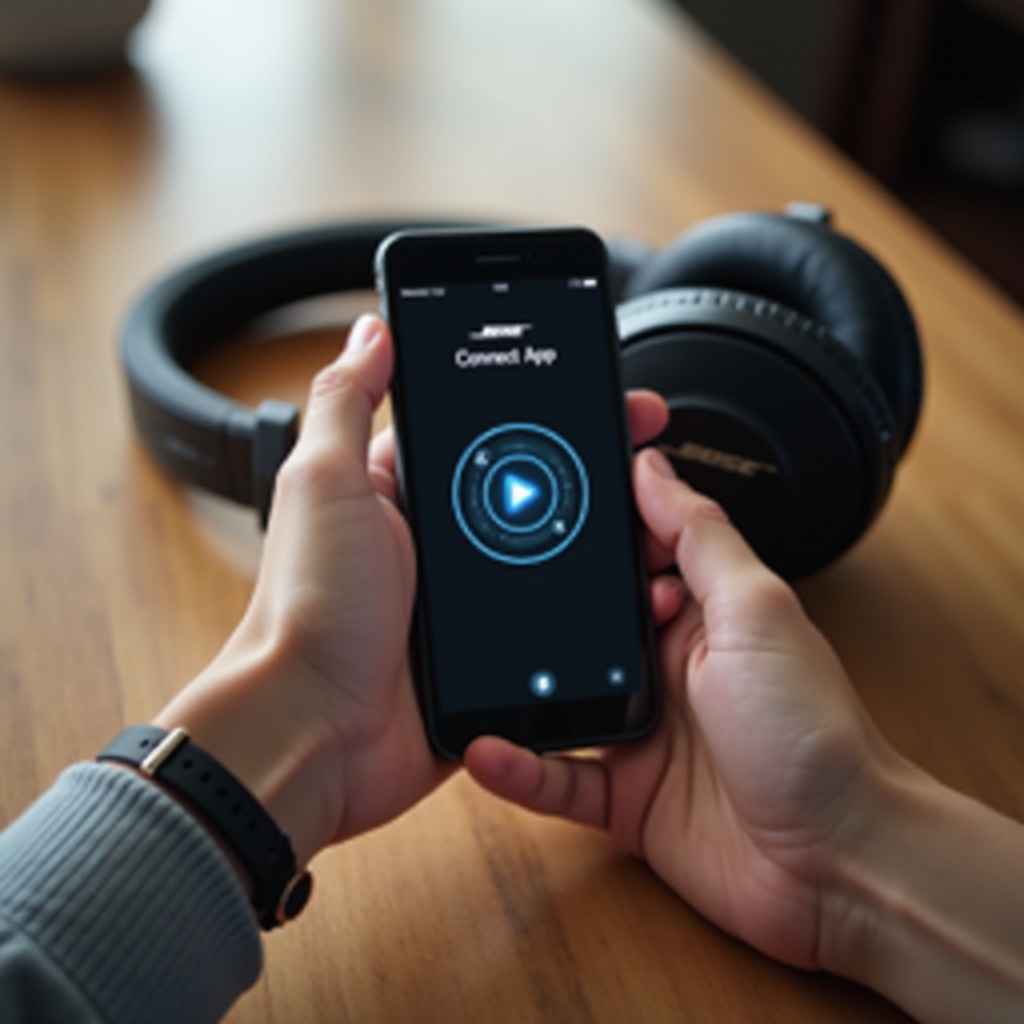
- Benefits of the Bose Connect App: Manage connected devices, update firmware easily, and customize settings for a tailored listening experience.
- Setting Up and Using the App:
- Download and install the Bose Connect app from the App Store or Google Play Store.
- Activate Bluetooth on your device and turn on your headphones.
- Open the app, which will automatically search for your headphones. Follow prompts to finalize the connection.
The Bose Connect app enhances user experience, providing easy access to all functionalities.
Troubleshooting Common Connectivity Issues
Though setup is generally smooth, issues may arise. Here’s how to resolve common problems:
- Resolving Bluetooth Problems: If your headphones fail to connect, toggle Bluetooth off and on, or restart your device. Ensure your headphones are in pairing mode and within range.
- Resetting Bose Headphones: Persistent issues may necessitate a reset:
- Turn off the headphones.
- Press and hold the power button for 10 seconds until a voice prompt confirms the reset.
Resetting often resolves connectivity problems, ensuring your headphones function correctly.
Conclusion
Connecting Bose headphones to a new device doesn’t have to be challenging. With this guide, you can enjoy uninterrupted, high-quality sound. Keep your devices and headphones updated to maintain seamless connectivity and superior audio performance.
Frequently Asked Questions
How do I reset my Bose headphones?
Turn off the headphones. Press and hold the power button for 10 seconds until a voice prompt confirms the reset.
Why won’t my Bose headphones connect to Bluetooth?
Ensure Bluetooth is enabled on your device and headphones are in pairing mode. Check that the headphones are within range and not connected to another device.
Can I connect my Bose headphones to multiple devices simultaneously?
Yes, Bose headphones support multipoint technology, allowing connection to two devices at once. Use the Bose Connect app to manage this feature efficiently.